Quickstart guide
Getting started with AutoSamplr
Copy the URL
Use this hosted MP3 for your first run. Copy the file URL into AutoSamplr.
../assets/audio/piesni-pamietam-ciche-jasne-zlote-dnie.mp3
Or download the MP3 and drag and drop it into AutoSamplr.
Song credit: "Pieśni - Pamiętam ciche, jasne, złote dnie" by Mieczysław Karłowicz, performed by Michał Czapowski via Musopen. Licensed under CC BY-SA 3.0.
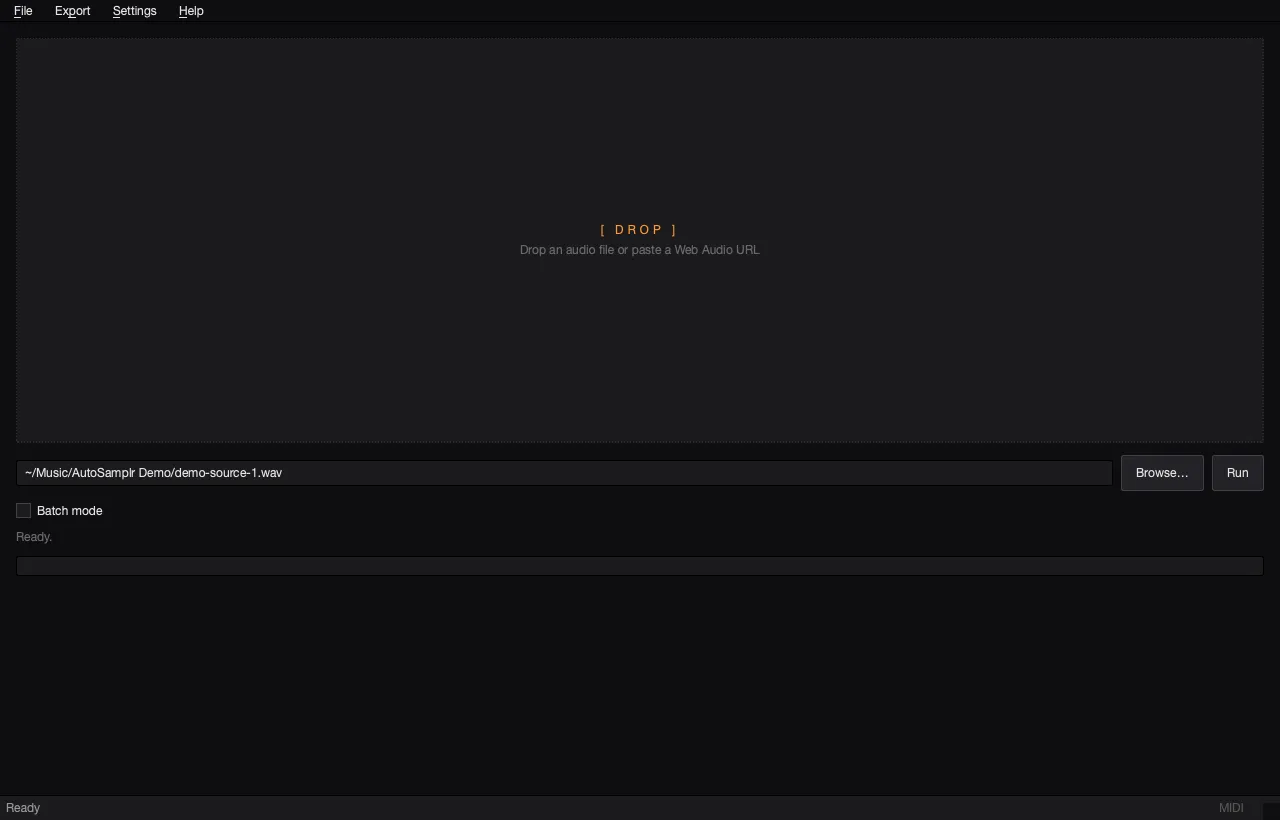
Paste the URL and press Run
In AutoSamplr, paste the MP3 URL into the URL box. Press Run and wait for the pads to generate.
Shape sounds with the waveform editor and macros
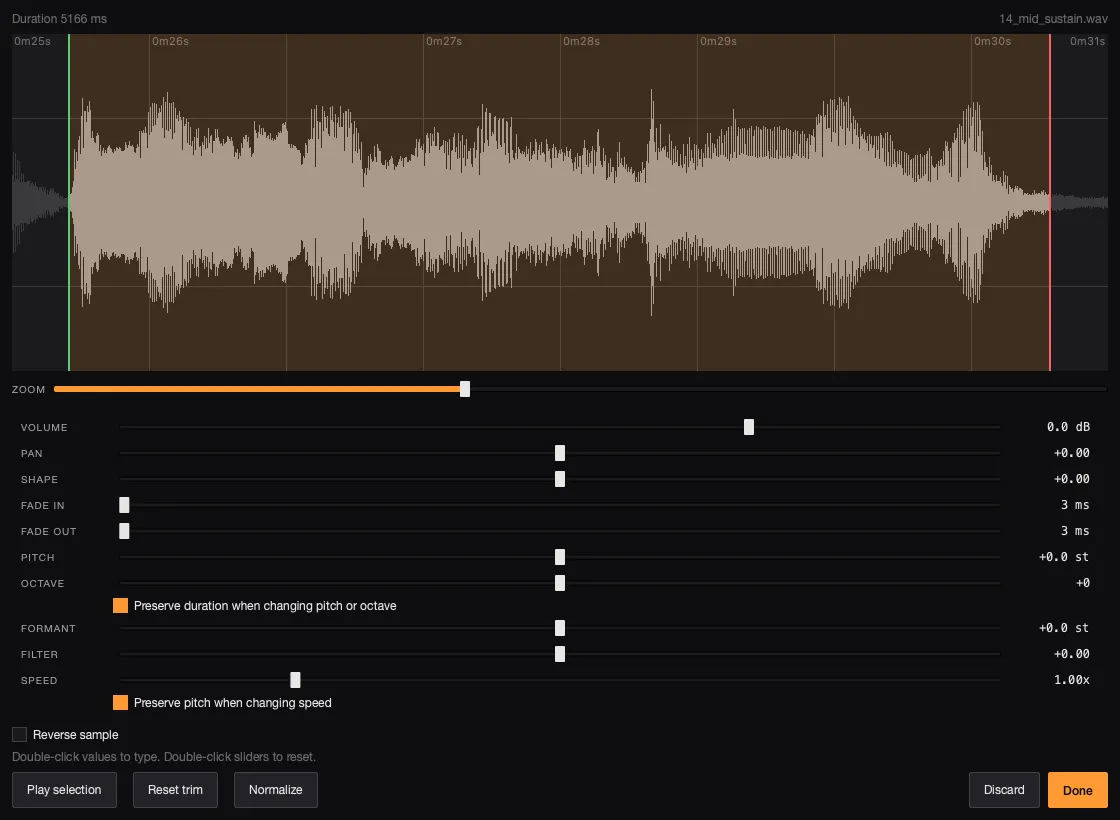
- Right-click a pad to open the waveform editor. Trim the start and end, then adjust pitch, filter, formant, speed, or fades.
- Press the lock icon in the top-right corner of any pad you want to keep.
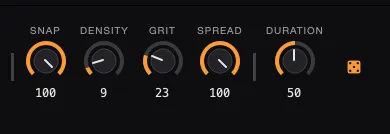
- For unlocked pads, press the dice icon to replace them with completely random new sounds, or change the macro parameters to refresh them in a more controlled direction.
Export your first kit
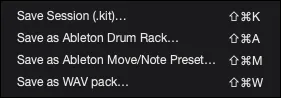
Open Export and choose the format you need: Ableton Drum Rack, Move or Note preset, WAV pack, or session. You can also drag and drop an Ableton Drum Rack straight into Ableton.
There is a world of audio waiting to be sampled.
Public-domain recordings, Creative Commons stems, field recordings, and archive audio can all become sample packs. AutoSamplr helps you extract the usable bits, shape them, and send them straight to your DAW.



Swipe to see more →